How a tightness test runs, end to end
A step-by-step tour of a full IGEM/UP/1B Edition 4 tightness test in the app — from job setup and pipework entry to the pass/fail verdicts, purge volume and signed PDF audit trail.
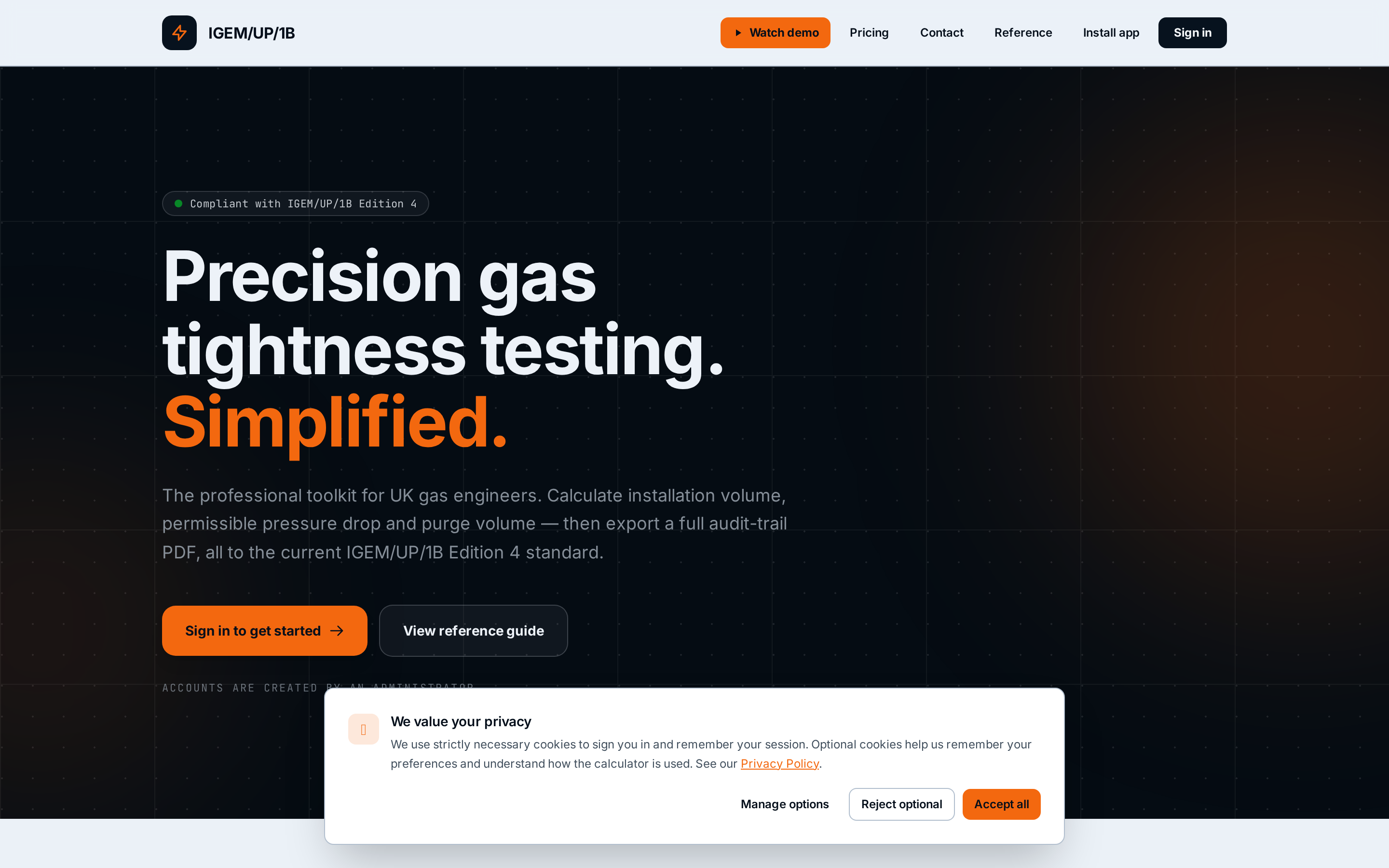
Open the calculator from the welcome page
From the public homepage, tap Sign in to open the Engineer Portal. Once signed in, the header links straight to the calculator, the reference guide, and installation instructions.
- Public landing page with feature overview and pricing
- Prominent Demo and Sign in buttons in the header
- Direct link to the IGEM/UP/1B Edition 4 reference guide
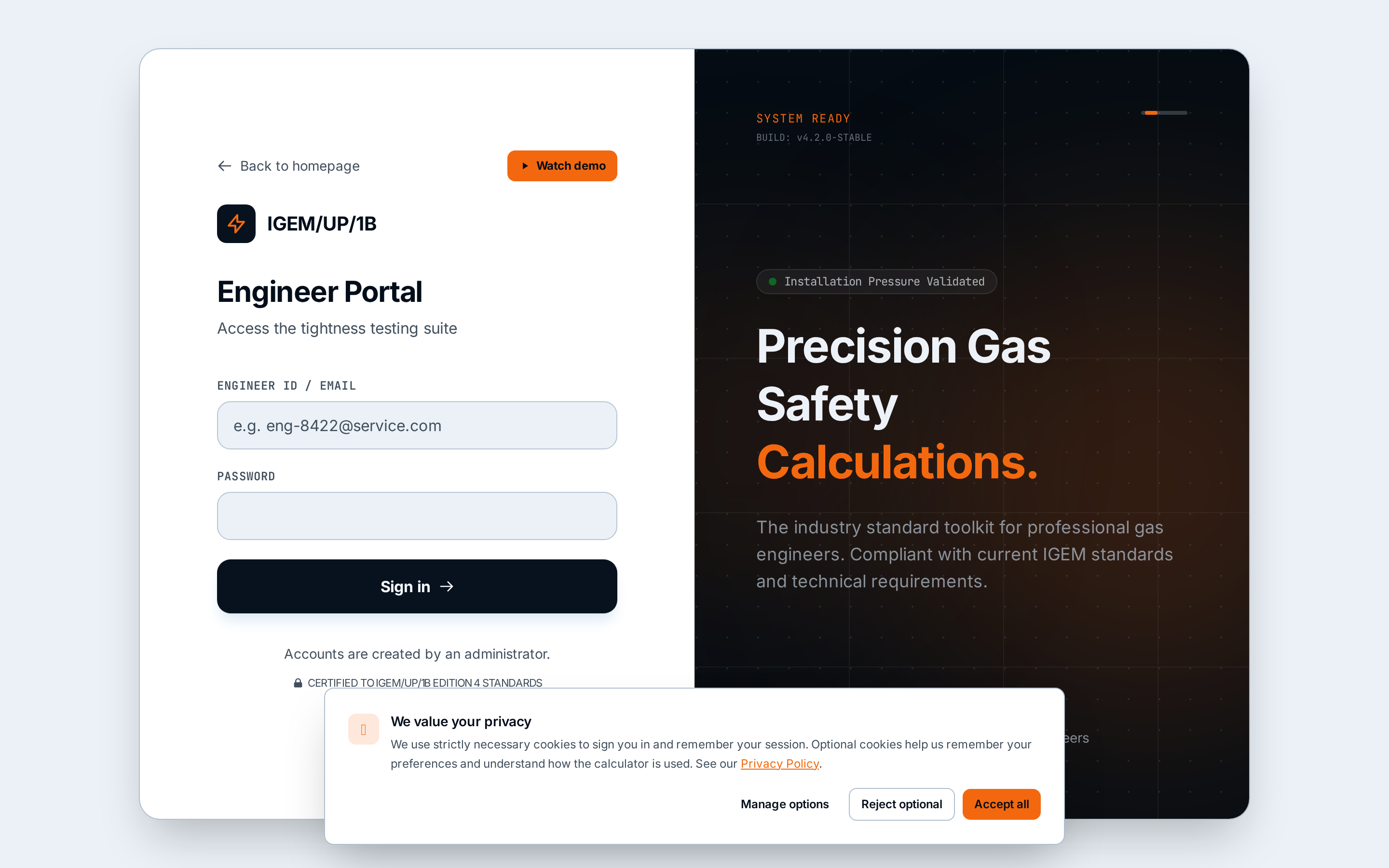
Sign in to the Engineer Portal
Access is admin-controlled — accounts are provisioned by an administrator using the built-in user manager. There is no public sign-up. Signing in prefills your name and business into every PDF.
- Email and password sign-in
- Admin-only user provisioning with active / disabled status
- Engineer profile prefills Job Details on the calculator
Set up the job
At the top of the calculator, pick Fuel Gas (Natural Gas, LPG or LPG/Air), Gauge Type (water, 1-decimal electronic or 2-decimal electronic) and a Meter Preset (U6–U65, E6, E16 or custom). Enter Job Details — engineer, business, job ID, client, site address — and, if you want, scan the meter serial with the barcode scanner.
- Fuel Gas selector: NG / LPG / LPG/Air
- Gauge Type controls the 0.25 / 0.2 mbar perceptible-movement threshold
- Meter presets pre-load the meter's internal volume
- QR / barcode scanner captures meter serials without typing
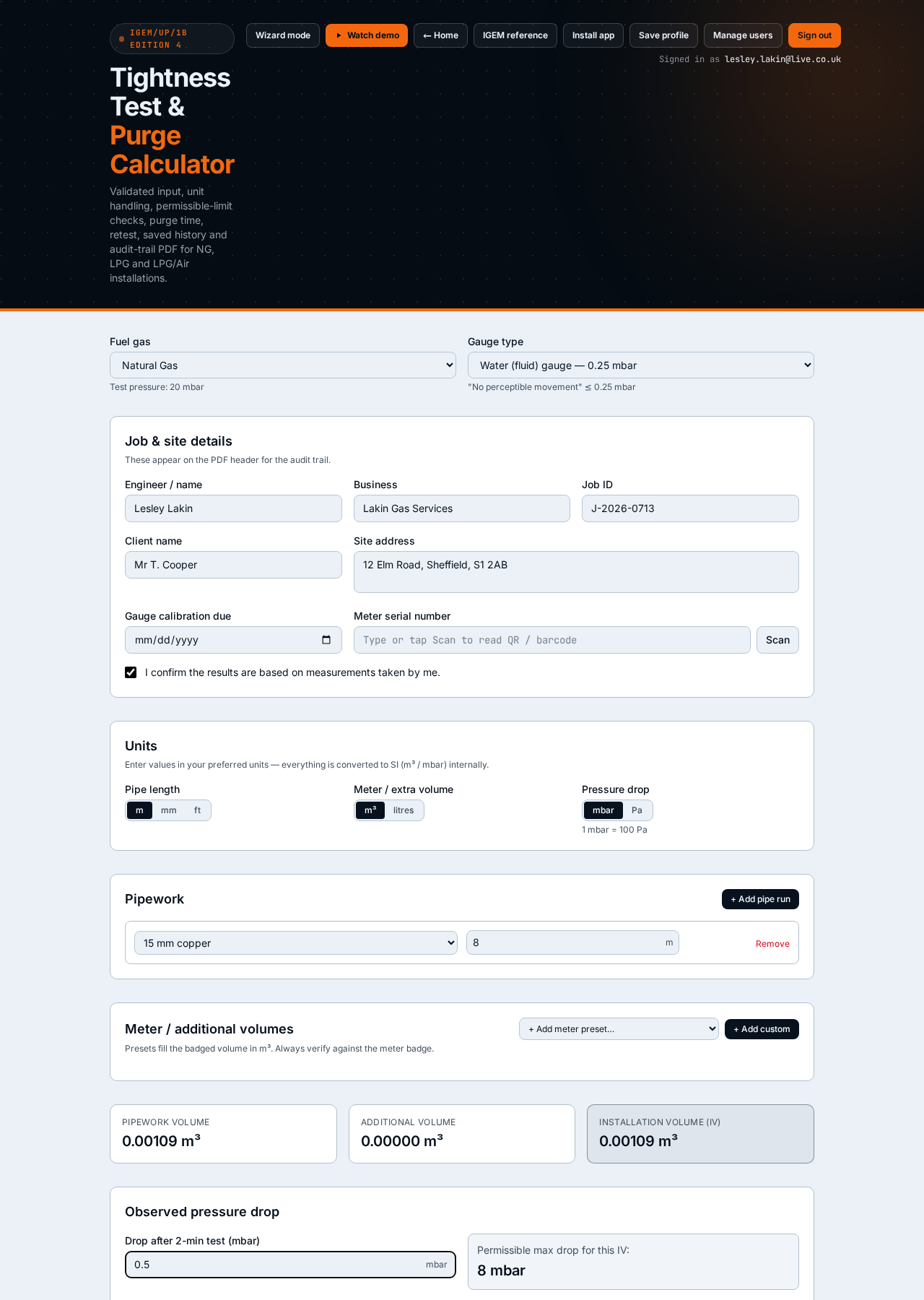
Enter the pipework runs
Add each pipe run with its material, nominal size and length. Units are switchable (m / mm / ft) with SI conversion behind the scenes. As you type, the Installation Volume (IV) recalculates live, using the standard's internal-volume figures for common copper and steel sizes.
- Copper and steel sizes from 8 mm up to 2"
- Live Installation Volume update as pipes are added or edited
- Soft warning if IV exceeds 0.035 m³; hard block on non-numeric or negative input
- Add extra meter or fitting volumes as separate entries
Record the test pressure and observed drop
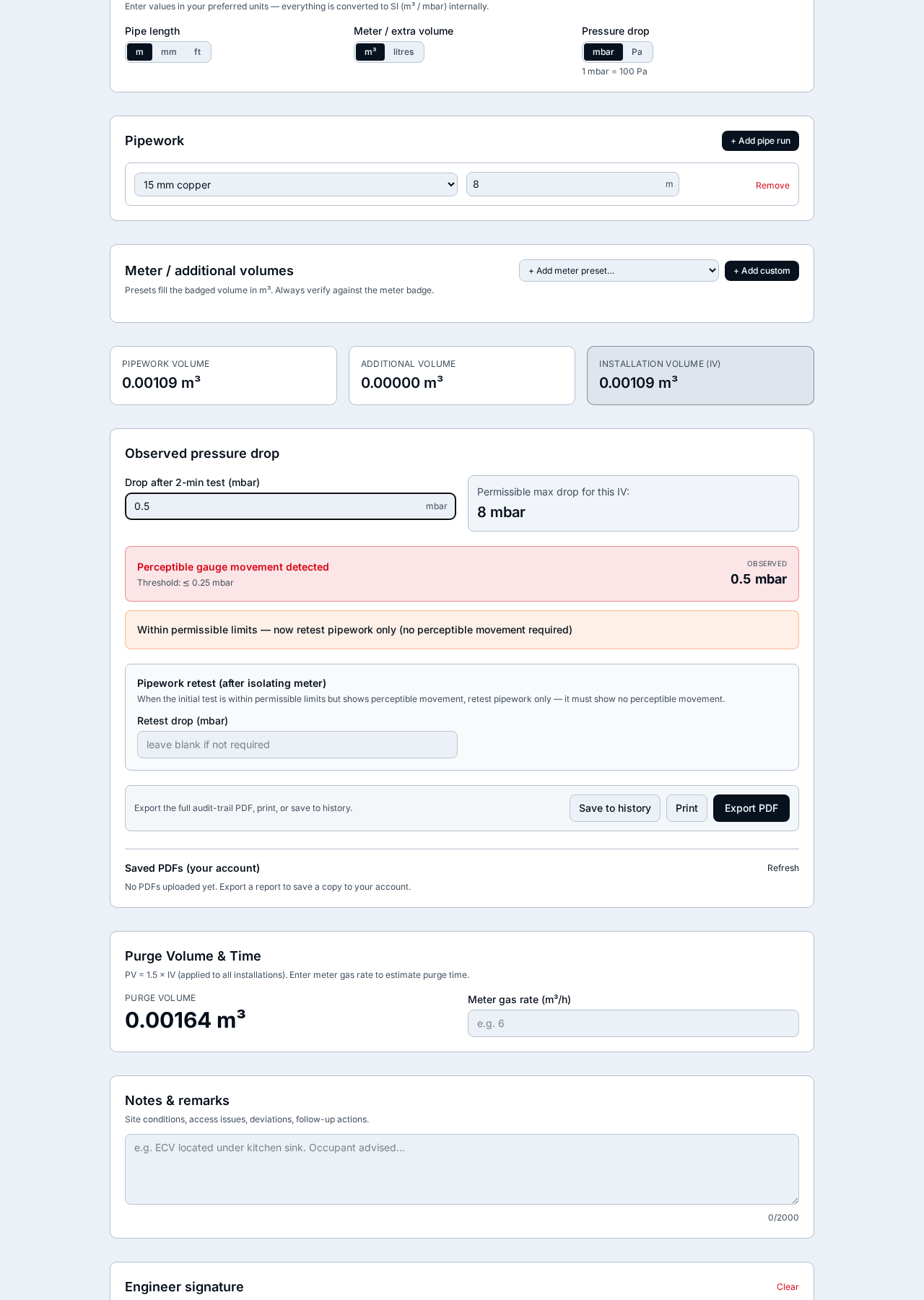
Enter the stabilised test pressure and the observed pressure drop over the test period. Mbar and Pa are both accepted, with an on-screen echo of the converted value. If you enter a value that looks like Pa when the field expects mbar (or vice versa), the app flags a unit mismatch and offers a one-click Apply fix.
- Mbar / Pa toggle with live converted-value echo
- Unit-mismatch detector with an Apply fix button
- Gauge calibration warning if the test setup looks out of range
Read the two verdicts
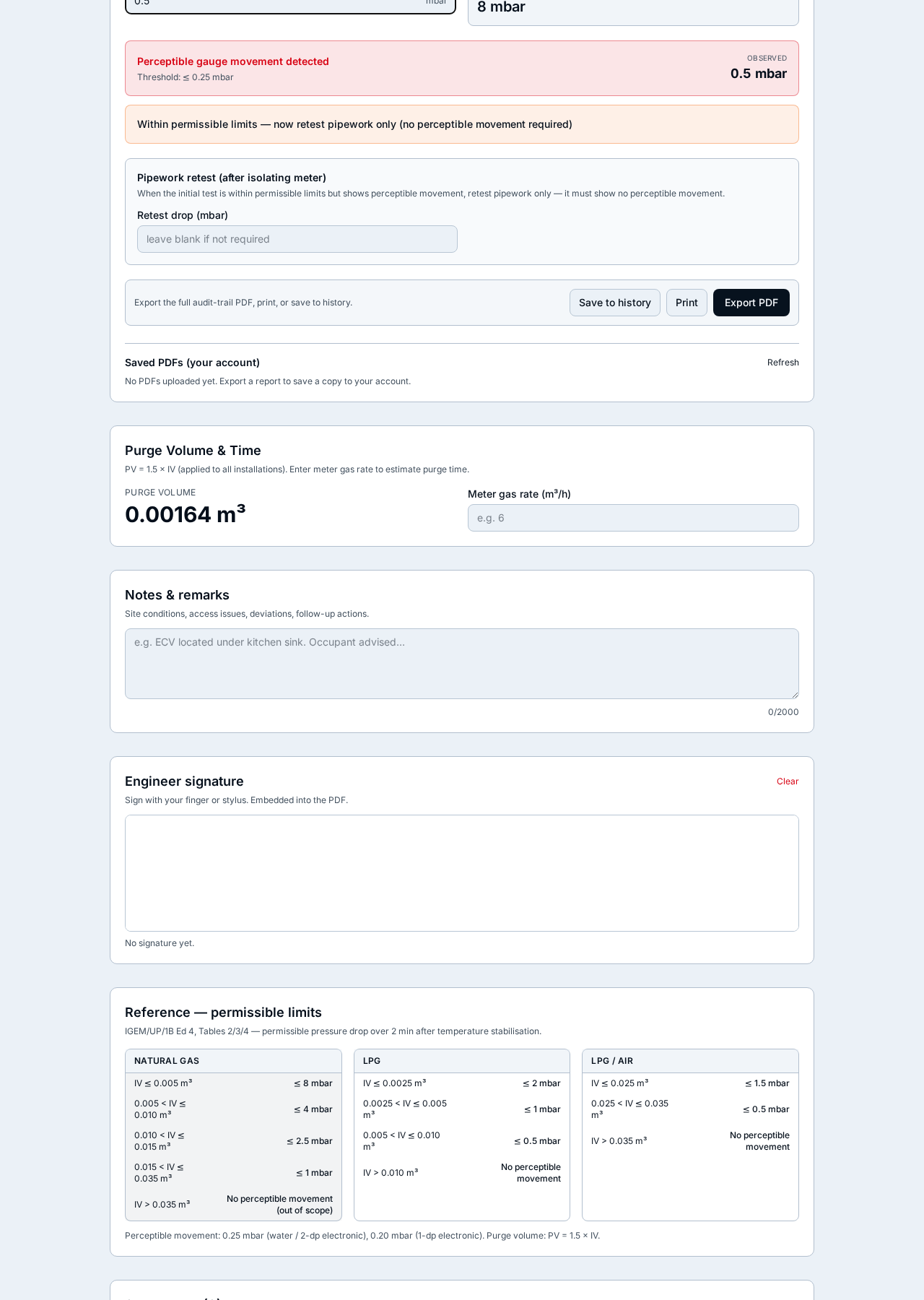
The results panel returns two independent pass/fail verdicts, following the standard's step-by-step logic. First, Perceptible Movement (0.25 mbar for water / 2-decimal electronic gauges, 0.2 mbar for 1-decimal electronic). Second, the Permissible Limit for that fuel gas and Installation Volume.
- Green PASS when there is no perceptible gauge movement
- Amber WARN when within permissible limits but movement is perceptible
- Red FAIL when the observed drop exceeds the permissible limit
- Purge Volume shown as PV = 1.5 × IV with an estimated purge time
Sign, export and save the PDF
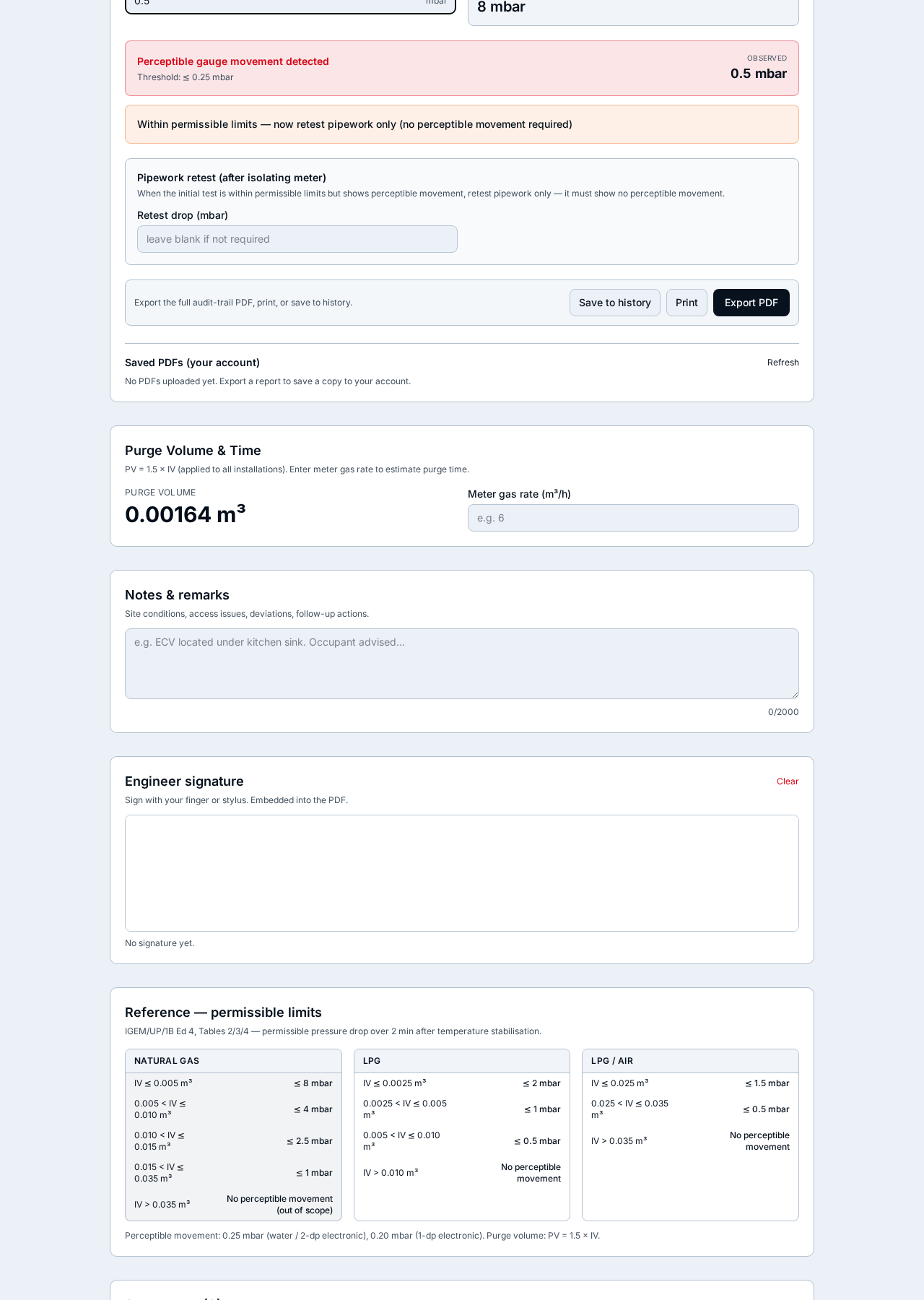
Tick the engineer declaration, add an on-screen signature and export a full audit-trail PDF. The report includes your details, every entered input, converted SI values, both verdicts, unit-mismatch corrections, purge volume and the signature. It is saved locally in your history and, if you are signed in, uploaded to your private cloud storage.
- One-click PDF export with signed audit trail
- Local history of the last 50 runs on this device
- Private per-user cloud storage in the Saved PDFs tab
- Optional customer / witness signature separate from the engineer
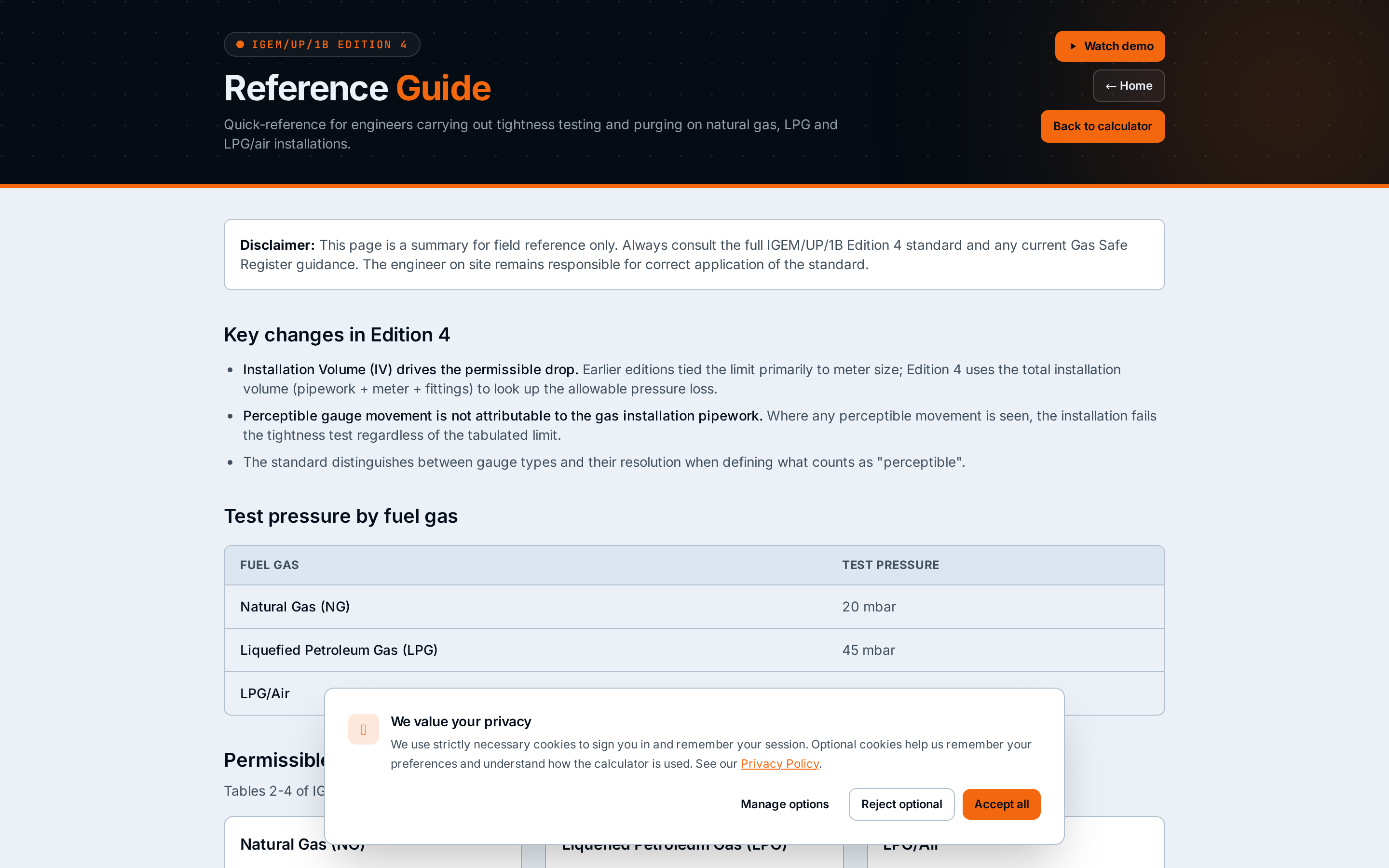
Refer to the standard at any time
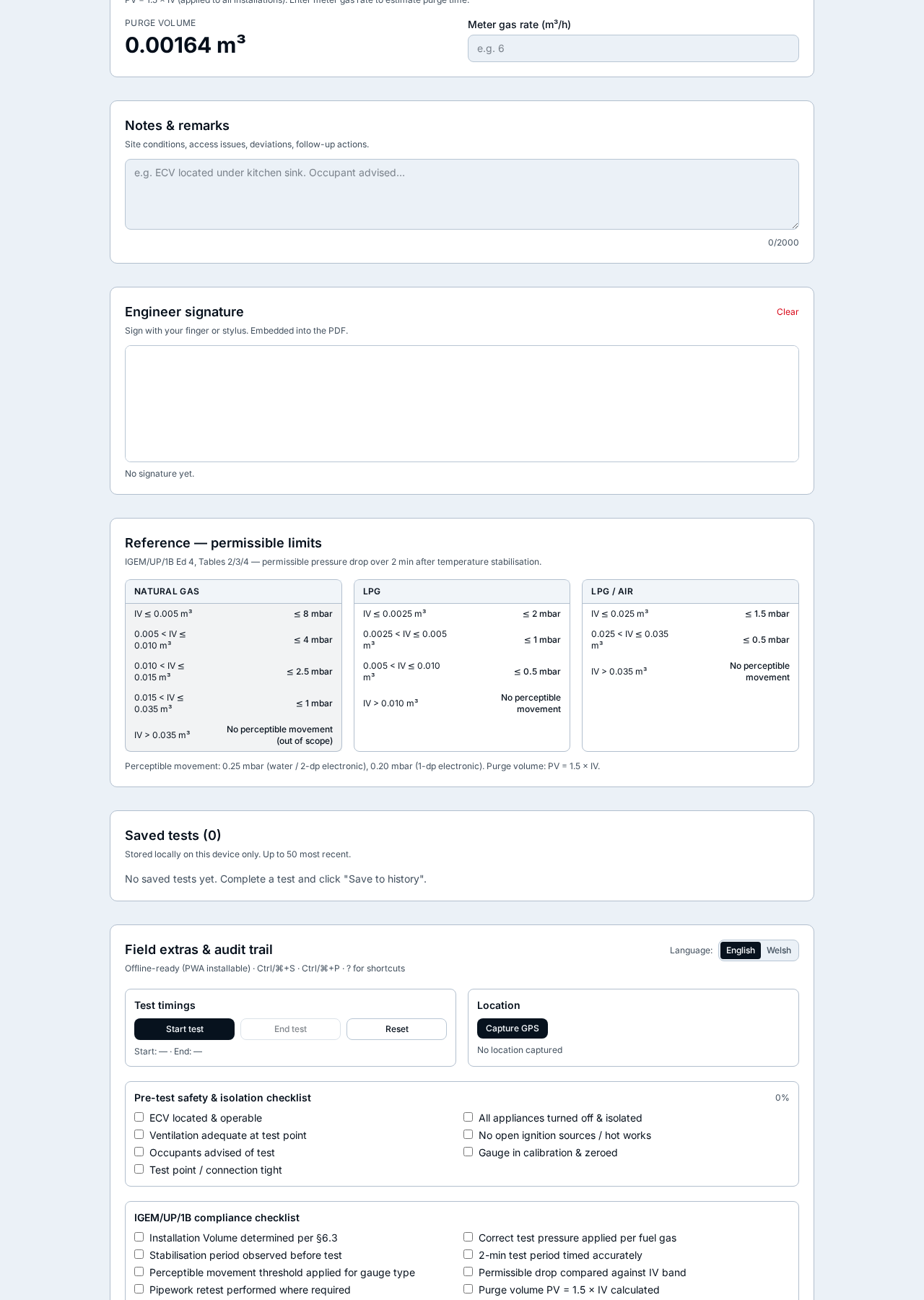
Every screen links to the built-in IGEM/UP/1B Edition 4 reference guide — permissible-limit tables for NG, LPG and LPG/Air, formulas, purging procedure and the clause numbers your Gas Safe assessor will look for.
- Permissible-limit tables for all three fuel gases
- Purging formula PV = 1.5 × IV and worked examples
- Clause references (§5.6, §6.3 …) surfaced in wizard mode